
01 — One recording, several clips
Split audio online into the pieces you need
Break a long recording into useful audio clips with the Loudness.ai Audio Splitter. Add split points where a section ends, or divide the whole file into equal parts. Listen to each piece before downloading it, so every clip starts and finishes where you intended.
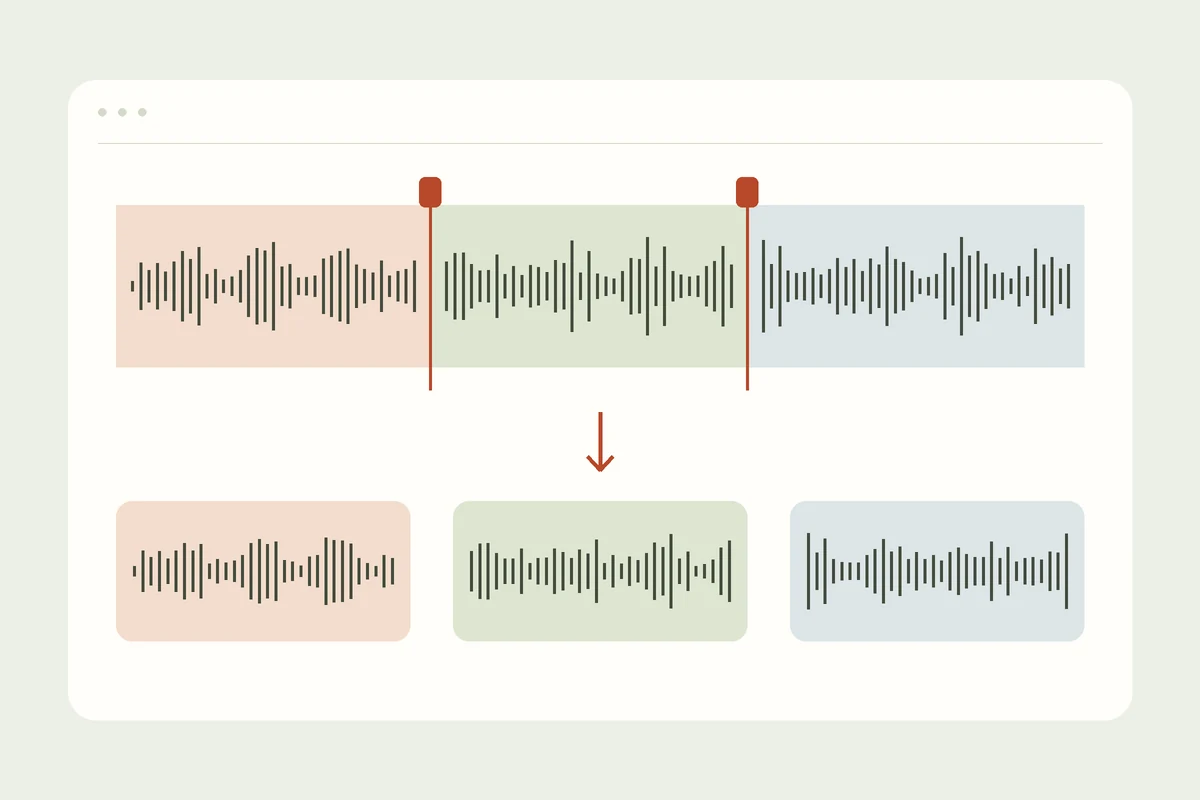
Use this free audio splitter for interviews, lessons, practice recordings, and podcast chapters. The waveform helps you find changes in speech or music. Move a boundary visually or enter an exact time when you already know where the next section begins. One recording becomes a set of separate, numbered files.
02 — Give every section its own file
Split podcasts, lectures, and music recordings
Podcast chapters
Split MP3 interviews into answers, topics, or highlights. Place each boundary between phrases so listeners hear complete thoughts. Preview neighboring clips to catch a word that crosses the cut.
Lessons and lectures
Divide a lecture into study sections or split audio into parts for sharing with students. Equal parts are useful when you want several clips with the same duration.
Music practice
Separate a rehearsal into songs, exercises, or repeated takes. A WAV splitter makes it easier to revisit one section, send a passage to a bandmate, or compare performances.
03 — Put the boundaries in the right place
Mark a moment. Listen to every piece.
Choose your split points
Click the waveform, then add a split at the playhead. Drag the marker to adjust it, use precise time fields, or choose the number of equal parts. Undo and redo let you revise the boundaries while keeping the recording open.
Download the clips together
Select a clip to check its start, end, and duration. Export one section when you only need that passage, or download all clips as WAV files in one ZIP. Numbered filenames keep the original sequence easy to follow.
04 — FAQ
Audio Splitter questions
How do I split MP3 audio online?
Open your MP3, add the split points, and preview the resulting clips. Download the selected clip or save all the sections together in a ZIP archive.
Can I split a recording into equal parts?
Yes. Choose the number of clips and use Split evenly. You can then adjust individual boundaries if a cut lands in the middle of speech or music.
Can I split WAV and M4A files?
Yes. Open common WAV, MP3, or M4A recordings. Other supported audio formats can also be read by your browser. The exported clips are WAV files.
Does splitting remove sections of my audio?
Split points divide the recording into neighboring clips. They do not erase a passage. Each clip covers the audio between its start and end boundaries.
Is the MP3 splitter free?
Yes. You can split audio online for free without creating an account or installing software. Choose a recording and work directly in the browser.
Can I download just one audio clip?
Yes. Select the section you need, preview it, and download that clip. Use Download all clips when you want the complete set in its original order.