
01 — Several recordings, one flow
Audio Joiner Online to merge MP3 and WAV files
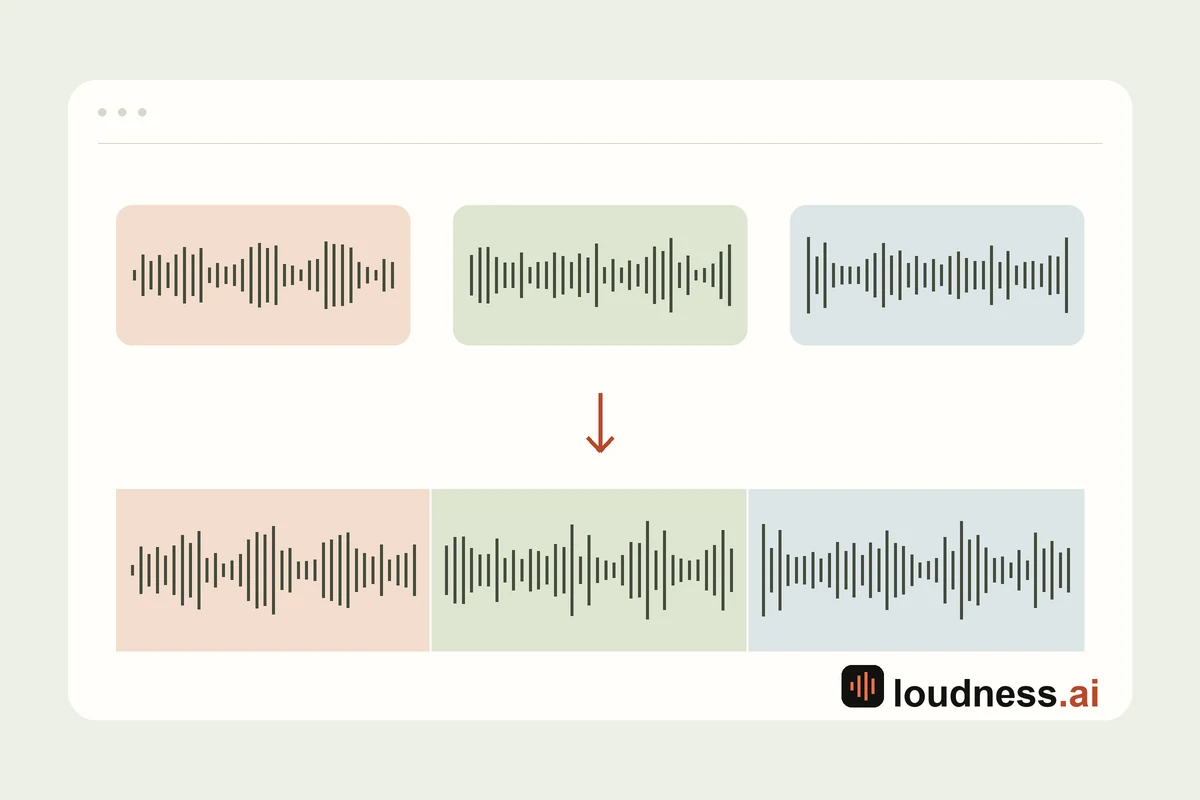
Bring separate recordings together with the Loudness.ai Audio Joiner. Add your files, arrange them in the order you want, and listen to the complete sequence. Use this free audio joiner to combine voice notes, assemble podcast sections, or join songs for continuous playback.
The audio merger gives every recording its own place in the sequence. Reorder clips, remove an unwanted take, and adjust each track’s volume before saving. Choose a direct join for a clear boundary, or add crossfade to blend the end of one recording into the beginning of the next.
02 — Bring your recordings together
Combine podcasts, voice notes, and music
Podcasts and narration
Combine audio files from an introduction, an interview, and closing remarks. Join separate narration takes in story order, then listen to each transition before exporting the full episode.
Voice recordings
Turn several voice notes into one recording for a lesson, presentation, or personal archive. Adjust the volume of individual clips when one speaker sounds louder than the next.
Music sequences
Join MP3 songs or practice takes for continuous listening. Use crossfade for a softer handover between tracks, or keep a direct join when the next passage should start immediately.
03 — Listen across every join
Merge audio with balanced volume and crossfade
Arrange and balance audio clips
Drag recordings into place or use the reorder controls. Play the sequence and compare levels at each boundary. Undo and redo help you try a different order or volume setting while keeping your recordings together.
Crossfade and export one WAV
Choose the crossfade overlap to suit the length of your clips. Add fade in or fade out for a gentle opening or finish. Download one 16-bit or 24-bit WAV, ready for your next edit or listening session.
04 — FAQ
Audio Joiner: MP3 merging questions
How do I merge audio files online?
Choose two or more recordings, set their order, and preview the sequence. Adjust transitions and volume as needed, then click Export audio to download one WAV file.
Can I use it as an MP3 joiner?
Yes. Add your MP3 recordings and combine them in sequence. You can also merge WAV or M4A files, including supported recordings with different input formats.
What does crossfade do?
Crossfade briefly overlaps neighboring clips, lowering one while raising the next. It creates a gradual transition. A direct join places recordings one after another without that overlap.
Is the audio combiner free?
Yes. The online audio combiner is free to use without creating an account or installing an application. Open the tool, choose your recordings, and arrange them.
Can I change the order of the files?
Yes. Reorder recordings before exporting and preview the updated sequence. Remove a clip you do not need or add another recording to complete the track.
What format is the merged audio?
The combined recording downloads as a single WAV file. Select 16-bit or 24-bit output and choose a filename to keep the result organized with your other recordings.