
01 — Keep the part you need
Cut audio online. Keep your best take.
Turn a long recording into a focused audio clip with the Loudness.ai Audio Cutter. Select the section you want, listen to it, and save a separate file. Use this free audio cutter to shorten a voice note, trim a song intro, or extract a useful moment from an interview.
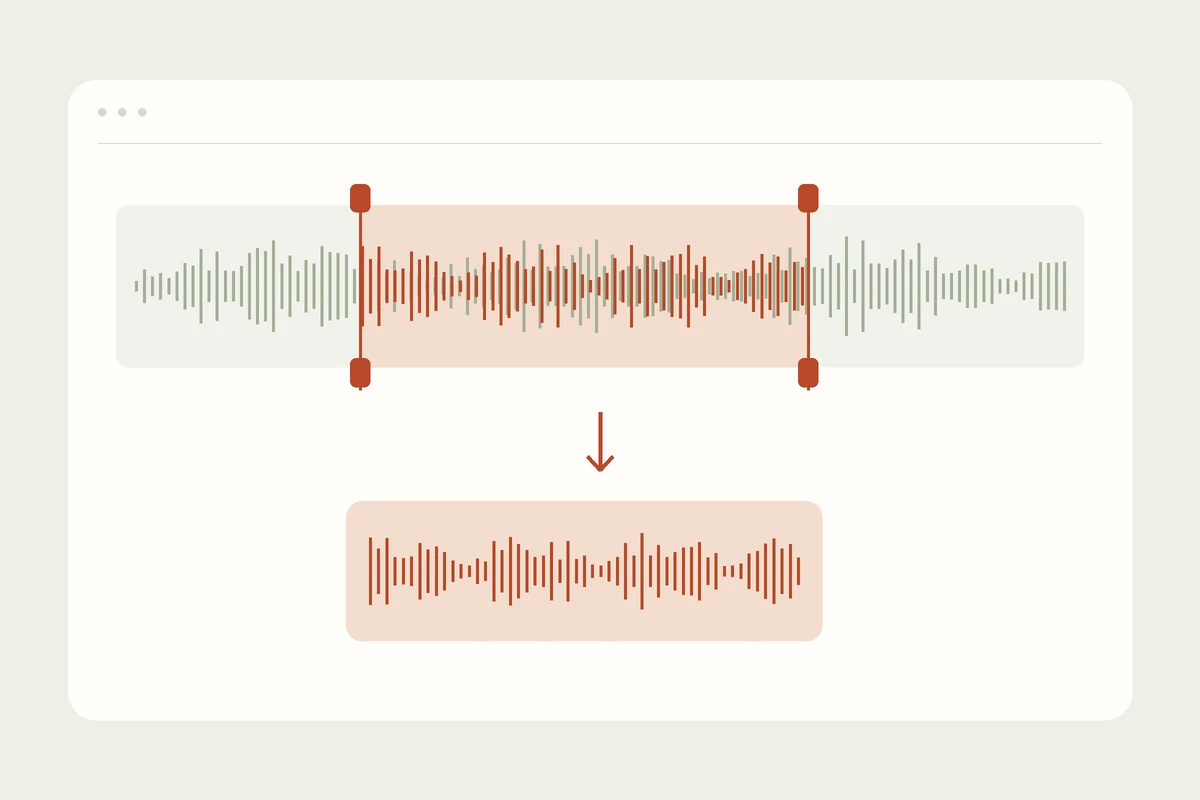
The MP3 cutter shows your recording as a waveform, so you can see where sounds begin and end. Drag the selection handles or enter precise start and end times. This audio trimmer helps you keep a complete phrase, remove an empty opening, and finish at the right moment.
02 — Made for your next edit
Trim music, podcasts, and voice recordings
Music and ringtones
Use the music cutter to isolate a chorus, shorten an intro, or prepare a ringtone clip. Preview the edges before saving so the phrase feels complete.
Podcast highlights
Cut a memorable answer from an interview or make a short podcast teaser. Keep a little breathing room around the words for a natural opening and ending.
Voiceovers and lessons
Trim audio online to remove the wait before a voiceover, shorten a practice take, or extract a lesson excerpt. Your original recording remains available for another edit.
03 — A smoother finish
Choose exact timing. Soften the edges.
Hear the selection
Zoom into the waveform when a boundary needs a closer look. Play the selection, loop it, and adjust the times until the start and finish sound right. Undo and redo help you compare edits without starting over.
Add a gentle fade
Fade in introduces the clip gradually; fade out softens its ending. Choose each fade duration to suit the sound. Export a 16-bit or 24-bit WAV for your video editor, podcast project, or music session.
04 — FAQ
Audio Cutter questions
How do I cut MP3 audio online?
Choose your MP3, select the section with the handles or time fields, then listen. Click Export clip to download the selected audio as a new WAV file.
Can I use it as a song cutter?
Yes. Open your song and choose the verse, chorus, or other passage you want. You can trim WAV recordings and cut music from MP3 or M4A files.
Is the audio cutter free?
Yes. The online audio cutter is free to use, and you can edit a recording without signing up or installing an application.
Will trimming change the pitch or speed?
Trimming keeps the selected section at its original pitch and speed. Fade controls change the level near the edges, rather than stretching or retuning your recording.
Which files can I open?
Open common recordings such as MP3, WAV, and M4A. The editor also accepts supported OGG, FLAC, AAC, and other audio files that your browser can read.
Does the tool replace my original file?
No. Downloading creates a separate WAV clip. Your source file stays on your device, so you can reopen it and make another selection whenever you need.